In a world where sharing experiences is paramount, the ability to connect two AirPods to one phone opens up a realm of possibilities for shared enjoyment. Whether you’re watching a movie together on a long flight, jamming out to your favorite tunes with a friend, or simply catching up on a podcast while lounging at home, the convenience of syncing two AirPods to a single device enhances the audio-sharing experience like never before. But how exactly can you achieve this seamless connection? Fear not, as we delve into the step-by-step process of mastering the art of multi-listening with AirPods.
Before diving into the technicalities, it’s essential to ensure that your AirPods and the device you’re connecting them to are compatible with this feature. Multi-AirPods listening is supported on Apple devices running iOS 13.2 or later, iPadOS 13.2 or later, or macOS Catalina 10.15.1 or later. If your devices meet these requirements, you’re ready to embark on this journey of shared audio bliss.
Step 1: Enable Bluetooth and Open the AirPods Case Begin by unlocking your iPhone or iPad and enabling Bluetooth connectivity. Next, open the AirPods case lid, but ensure that both AirPods are snugly placed inside. This action activates the AirPods, making them discoverable to nearby devices.
Step 2: Access the Control Center Swipe down from the top-right corner of your iPhone or iPad screen to access the Control Center. Here, you’ll find various settings and shortcuts, including Bluetooth.
Step 3: Press and Hold the Volume Slider Within the Control Center, locate the volume slider, which typically appears as a horizontal bar. Press and hold this slider until it expands to reveal additional controls, including options for audio output.
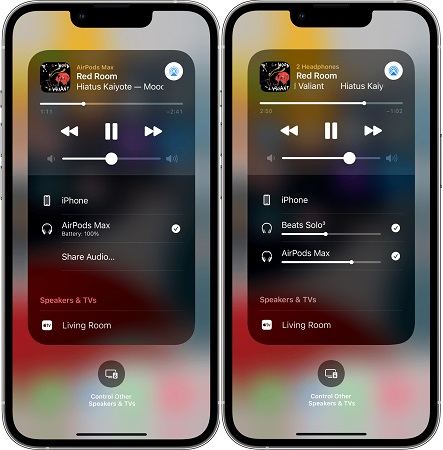
Step 4: Tap the AirPlay Icon After expanding the volume slider, you’ll notice an AirPlay icon—a triangle with concentric circles—located at the top-right corner of the expanded panel. Tap this icon to access the audio output options.
Step 5: Select Both AirPods Upon tapping the AirPlay icon, a list of available audio output devices will appear. Here, you should see your AirPods listed as selectable options. To connect both AirPods simultaneously, select both AirPods from the list.
Step 6: Enjoy Shared Audio Once you’ve selected both AirPods, they will be connected to your iPhone or iPad simultaneously, allowing you and your companion to enjoy synchronized audio playback. Whether you’re listening to music, watching a video, or engaging in a phone call, the audio will be transmitted to both AirPods seamlessly.
Troubleshooting Tips:
- If you encounter any issues during the connection process, ensure that both AirPods are charged and properly seated within the charging case.
- Verify that your iPhone or iPad is running the latest version of iOS or iPadOS, as older software versions may not support this feature.
- If one or both AirPods fail to connect, try resetting them by returning them to the charging case for a few seconds before attempting to reconnect.
- In rare cases, interference from nearby electronic devices or environmental factors may disrupt the connection. Try moving to a different location or turning off other Bluetooth devices to mitigate interference.
In conclusion, mastering the art of connecting two AirPods to one phone unlocks a world of shared audio experiences, allowing you and your companions to enjoy synchronized playback wherever you go. By following the simple steps outlined above, you can seamlessly connect multiple AirPods to your iPhone or iPad and immerse yourselves in the joy of shared listening. So grab your AirPods, invite a friend, and embark on a journey of multi-listening bliss together.
